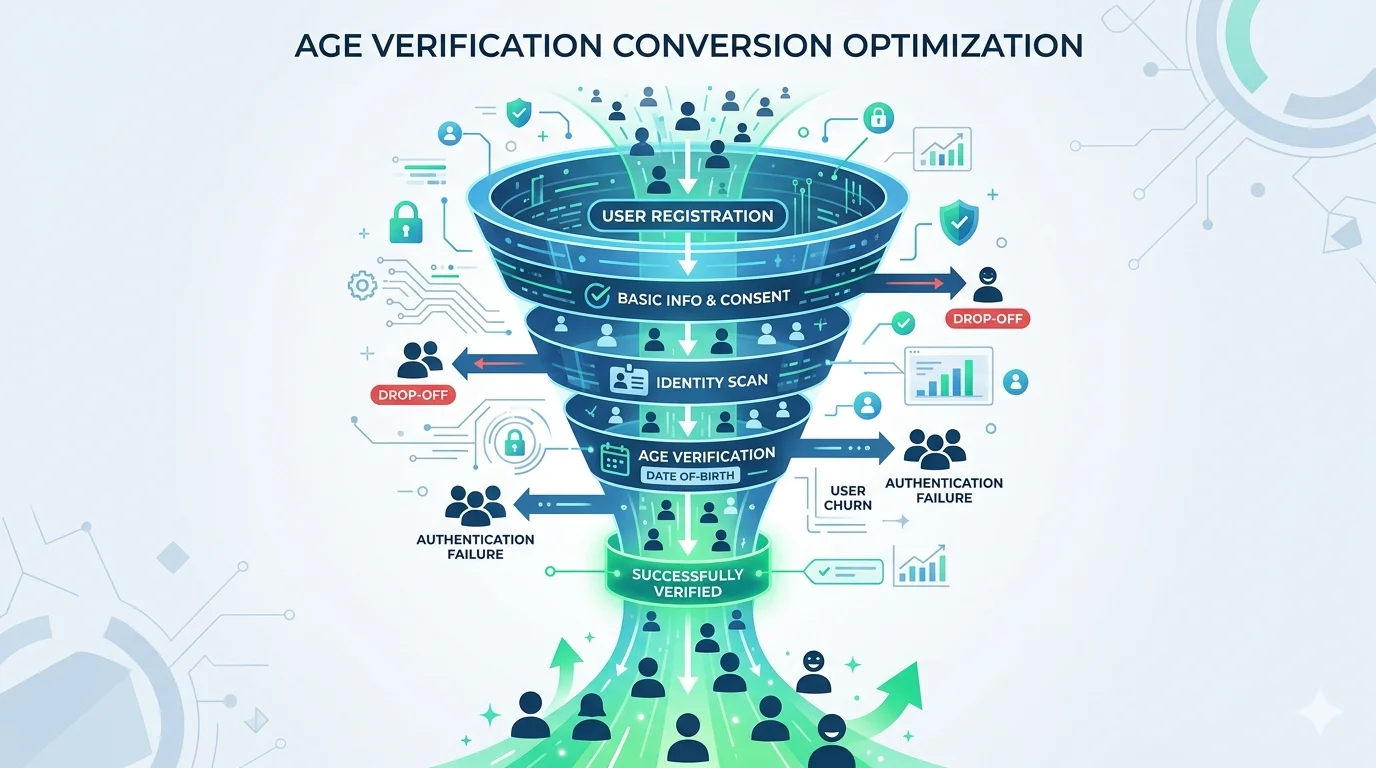
Age verification is now mandatory in the UK, across the EU under the Digital Services Act, in Australia for social media, and in more than half of US states. The compliance conversation has moved past whether platforms need verification to how they implement it. But there’s a question almost nobody is asking: what happens to the users who physically cannot complete the verification flow you’ve built?
The numbers are not small. Over 1.3 billion people worldwide live with some form of disability. In the EU alone, 87 million people have a disability, and the population aged 65 and over is projected to reach 130 million by 2030. In the United States, 26% of adults have a disability, and 55 million are over 65.
These are not edge cases. These are your users. And the standard age verification playbook — scan your ID, take a selfie, navigate a multi-step modal flow — systematically excludes many of them.
This isn’t just a UX problem. The European Accessibility Act takes effect June 28, 2025, requiring digital services to be accessible. WCAG 2.2, published in October 2023, introduced specific success criteria for authentication flows. The EU’s April 2026 age verification recommendation explicitly calls for solutions that are “user-friendly” and interoperable. If your verification flow fails accessibility standards, you’re trading one compliance violation for another.
Who Gets Excluded and Why
To build inclusive verification, you need to understand the specific barriers different users face. This isn’t abstract empathy work — it’s failure-mode analysis.
Vision Impairments
Approximately 2.2 billion people globally have a vision impairment. For age verification, the failure points are concrete:
Document scanning requires positioning a physical ID within a camera frame, often with on-screen alignment guides. Users with low vision may not be able to see the guides. Users who are blind cannot perform this step at all without assistive technology, and most verification SDKs don’t expose their camera UI to screen readers.
Selfie capture for face-matching or age estimation assumes the user can see the camera preview, follow positioning instructions (“move your face into the oval”), and adjust for lighting. None of these interactions work with screen readers out of the box.
CAPTCHA and anti-bot challenges that appear during verification are a longstanding accessibility barrier. Audio CAPTCHAs exist but have low completion rates and don’t cover all scenarios.
Motor Impairments
Users with limited dexterity, tremors, or paralysis face a different set of barriers:
Camera-based flows require holding a device steady, positioning it at the correct angle, and tapping a capture button at the right moment. For users with tremors or limited hand control, this can be impossible without adaptive equipment.
Multi-step flows with timeouts punish users who navigate more slowly. If your verification session expires after 60 seconds of inactivity, you’re excluding users who rely on switch access, eye-tracking, or mouth sticks to operate their devices.
Small touch targets — the capture button, the “retry” link, the document-type selector — violate WCAG 2.2’s Target Size criterion (2.5.8) when they’re below 24x24 CSS pixels.
Cognitive Impairments
Users with intellectual disabilities, dementia, or conditions like dyslexia encounter barriers in verification flows that are poorly documented:
Complex instructions such as “Position your identity document within the frame, ensuring all four corners are visible and the image is free of glare” assume a level of reading comprehension and sequential task execution that not all users have.
Error recovery is often cryptic. “Verification failed. Please try again” doesn’t tell the user what went wrong or how to fix it. Users with cognitive impairments are significantly less likely to retry after an unexplained failure.
WCAG 2.2’s Accessible Authentication criterion (3.3.8) specifically states that cognitive function tests — including recognizing images, performing operations on them, or recalling specific information — should not be required. Many verification flows violate this by asking users to select which side of their ID to photograph, identify their document type from a grid of options, or transcribe information from their ID.
Elderly Users
Age verification for elderly users presents an ironic challenge: the people who are most obviously over 18 often have the hardest time proving it digitally.
Technology unfamiliarity is the first barrier. Many older adults have smartphones but use a limited set of features. Granting camera permissions, switching between apps, or understanding how to photograph a document within an embedded camera view are not intuitive for users who primarily use their phone for calls and messaging.
Biometric challenges are real. Facial recognition accuracy decreases for older adults, partly due to changes in facial features over time and partly due to differences between the photo on an ID (often decades old) and current appearance. Age estimation models trained predominantly on younger demographics can produce less reliable results for older faces.
Document condition matters. Older adults are more likely to have worn, faded, or expired documents. If your OCR pipeline rejects documents with low contrast or physical damage, you’re disproportionately rejecting elderly users.
Digital Divide Users
Not all exclusion is about disability. Users in rural areas with limited bandwidth, users with older devices, and users without government-issued photo ID face structural barriers:
Bandwidth constraints make real-time video-based verification impractical. Uploading a high-resolution document photo over a 2G connection can take minutes and frequently times out.
Device limitations affect camera quality, processing power for on-device ML models, and NFC capability for chip-based verification. The latest biometric SDKs often require iOS 15+ or Android 11+, excluding devices that are still common in lower-income demographics.
ID availability varies dramatically. In the United States, an estimated 11% of adults lack government-issued photo ID. The number is higher among low-income populations, elderly citizens, and racial minorities. Verification flows that require photo ID as the only path exclude these users entirely.
What WCAG 2.2 Requires for Verification Flows
WCAG 2.2 isn’t optional guidance. It’s the baseline referenced by the European Accessibility Act, Section 508 in the US, and the UK’s Equality Act. If your verification flow violates these criteria, you’re non-compliant.
The criteria most relevant to age verification are:
3.3.8 Accessible Authentication (Minimum — Level AA). No step in an authentication or verification process should require a cognitive function test (recognizing objects, solving puzzles, recalling information) unless an alternative is provided or the test can be completed with assistive technology. This means your verification flow cannot force users to identify their document type from a grid of images as the sole path. An alternative — such as automatic document detection — must exist.
3.3.9 Accessible Authentication (Enhanced — Level AAA). Strengthens 3.3.8 by removing the exception for recognizing objects. If you’re targeting AAA compliance, even “select your document type” dropdowns with icons need text alternatives.
2.5.8 Target Size (Minimum — Level AA). Interactive targets must be at least 24x24 CSS pixels, with exceptions for inline links and content the user agent controls. Your capture button, retry button, and method-selection options all need to meet this.
2.2.1 Timing Adjustable (Level A). If your verification session has a timeout, users must be able to turn it off, adjust it, or extend it — with at least 20 seconds’ warning before expiration. Verification flows that silently expire and force a restart violate this criterion.
1.3.5 Identify Input Purpose (Level AA). Input fields in your verification flow — name, date of birth, address — should use autocomplete attributes so browsers and assistive technologies can help users fill them in.
4.1.3 Status Messages (Level AA). When your verification flow updates status (“Processing your document…”, “Verification successful”), these messages must be programmatically determinable through roles or properties so assistive technologies can present them without receiving focus.
Architecture for Inclusive Verification
Accessibility isn’t a feature you bolt onto a verification flow after launch. It’s an architectural decision that affects method selection, fallback paths, SDK integration, and error handling.
Principle 1: Multiple Verification Paths
The single most important architectural decision for inclusive verification is offering multiple methods. No single verification method is accessible to all users. The solution is structured fallback:
Primary path: On-device age estimation. Camera-based age estimation is the lowest-friction method for most users and doesn’t require a physical document. But it requires camera access, stable positioning, and adequate lighting — barriers for some users.
Secondary path: Digital credential or wallet. mDL, EU Digital Identity Wallet, or platform-based credentials (Apple/Google wallet) require a single tap or biometric confirmation. These are highly accessible for users who have them but exclude users without compatible devices or credentials.
Tertiary path: Assisted verification. For users who cannot complete any self-service method, provide a path to human-assisted verification — video call, phone call, or in-person verification at a partner location. This is the accessibility safety net.
The key is that fallback must be automatic and graceful. If a user’s camera doesn’t activate, don’t show an error — offer the next method. If document scanning fails three times, suggest an alternative rather than blocking the user.
Principle 2: Progressive Disclosure
Don’t present all verification options and instructions at once. Show one step at a time, with clear language and large, well-labeled controls.
Instead of a modal with three columns of verification options and paragraphs of legal text, present a single question: “How would you like to verify your age?” with two or three clearly labeled buttons. Each button leads to a focused flow for that method.
For each step within a method, show exactly one instruction, one action, and one way to get help. “Point your camera at the front of your ID” with a large capture button and a “Having trouble? Try a different method” link.
Principle 3: Generous Timing and Error Recovery
Remove all arbitrary timeouts. There is no security reason to expire a verification session after 60 or 120 seconds. The session token should remain valid for the duration of a reasonable interaction — 15 to 30 minutes at minimum.
Make every error recoverable. When document capture fails, explain why in plain language: “The image was too dark. Try moving to a well-lit area.” Give unlimited retries for each step. Track the number of failures and proactively suggest alternative methods after three attempts, but never block the user from continuing to try.
Save progress. If a user completes document capture but fails at selfie matching, don’t force them to re-scan the document. Store intermediate results (encrypted, in memory or short-lived server-side) so the user can resume from where they left off.
Principle 4: Screen Reader and Keyboard Compatibility
Every element in your verification flow must be operable via keyboard alone and announced correctly by screen readers.
Camera controls need ARIA labels: aria-label="Capture photo of identity document". The viewfinder region should be an ARIA live region that announces status changes: “Document detected. Hold steady. Capturing.”
Document type selection should be a standard radio group or select element, not a custom image grid. Screen readers can navigate radio groups natively. Custom image grids require extensive ARIA markup to achieve the same result and frequently break.
Progress indicators — “Step 2 of 3” — should use aria-current="step" on the active step and aria-label on the progress container.
Result announcements — success, failure, and next-step instructions — must use role="alert" or role="status" to ensure screen readers announce them without requiring the user to navigate to them.
Principle 5: Adaptive UI
Detect what you can about the user’s environment and adapt the flow accordingly:
Device capabilities. If the device lacks a camera, don’t present camera-based methods. If NFC isn’t available, don’t offer tap-to-verify. Query capabilities at flow initialization and only present viable options.
Accessibility settings. If the user has enabled large text, high contrast, or reduced motion at the OS level, respect those settings in your verification UI. CSS prefers-reduced-motion, prefers-contrast, and prefers-color-scheme media queries should all influence your verification flow’s presentation.
Connection quality. If the user is on a slow connection, don’t attempt real-time video verification. Fall back to single-image capture with lower resolution requirements, or offer an offline-capable method.
Testing for Accessibility
Building accessible verification flows requires testing with actual assistive technologies and, ideally, users who rely on them.
Automated Testing
Automated tools catch the low-hanging fruit: missing alt text, insufficient color contrast, small touch targets, missing ARIA labels. Run these as part of your CI pipeline.
Tools like axe-core, Lighthouse, and WAVE can scan your verification UI and flag WCAG violations. But automated tools catch only about 30–40% of accessibility issues. The rest require manual testing.
Manual Testing Checklist
For each verification method your flow supports, test the complete path with:
Keyboard only. Tab through every step. Can you reach every interactive element? Can you activate the capture button with Enter or Space? Can you navigate between methods using arrow keys? Is there a visible focus indicator on every element?
Screen reader. Test with VoiceOver (macOS/iOS), NVDA or JAWS (Windows), and TalkBack (Android). Navigate the entire flow. Are instructions read aloud? Are status changes announced? Can you complete verification without any visual information?
Magnification. Zoom the browser to 200% and 400%. Does the layout reflow correctly? Are touch targets still large enough? Does any content get clipped or hidden?
Switch access. On iOS, enable Switch Control. On Android, enable Switch Access. Can you navigate and complete the flow using a single switch?
User Testing
Recruit participants who use assistive technologies as part of their daily life. Five users with different disabilities will reveal more issues than 50 users without disabilities testing the same flow. Pay particular attention to:
- Users who are blind and rely on screen readers for all navigation
- Users with motor impairments who use alternative input devices
- Older adults (70+) who are less familiar with smartphone cameras
- Users with cognitive impairments who may struggle with complex instructions
How Xident Approaches Inclusive Verification
Xident’s architecture was designed from the beginning with multiple verification paths, not as an afterthought. Here’s how our approach addresses the accessibility challenges outlined above:
On-device age estimation as the primary path. Our age estimation model runs entirely on the user’s device, requires a single front-facing camera capture, and completes in under two seconds. The camera UI is fully keyboard-navigable and screen-reader-compatible, with ARIA live regions announcing capture status.
Automatic fallback routing. If the user’s device lacks a camera, if three capture attempts fail, or if the user selects “I need another way to verify,” our SDK automatically presents the next available method. The flow never dead-ends.
No cognitive function tests. Document type detection is automatic — users don’t choose between “passport,” “driver’s license,” or “national ID.” The system identifies the document type from the image. This satisfies WCAG 2.2 criterion 3.3.8 without requiring any user decision.
Generous timing. Verification sessions remain valid for 30 minutes. There are no step-level timeouts. Users can leave the flow and return without losing progress.
Tested with assistive technologies. Every release is tested with VoiceOver, NVDA, TalkBack, and keyboard-only navigation. Our camera capture component meets WCAG 2.2 AA, and we publish our accessibility conformance report (VPAT) for enterprise customers.
Reusable credentials. Xident IDs allow users to verify once and prove their age across multiple platforms without repeating the verification flow. For users who found the initial verification difficult, this is transformative — they never have to do it again.
Compliance Mapping: Where Accessibility and Age Verification Intersect
Platforms operating in the EU, UK, or US face overlapping accessibility and age verification mandates. Here’s how they intersect:
European Accessibility Act (EAA) — effective June 2025. Requires digital services to be accessible. If your age verification flow is a gateway to your service, it falls under the EAA. A non-accessible verification flow makes your entire service non-compliant.
EU Age Verification Recommendation — April 2026. The Commission’s recommendation calls for solutions that are “user-friendly” and “privacy-preserving.” The accompanying implementation guidance references accessibility as a core requirement. Member States implementing national age verification solutions must ensure they meet accessibility standards.
UK Equality Act 2010 + Online Safety Act 2023. Ofcom’s guidance on age assurance requires that methods be “proportionate” — a standard that arguably fails when the only available method excludes users with disabilities. The Equality Act’s duty to make reasonable adjustments applies to age verification flows.
Americans with Disabilities Act (ADA) — US. Courts have increasingly held that websites and apps are “places of public accommodation” under Title III. An inaccessible age verification flow that prevents disabled users from accessing a service could trigger ADA liability, independent of any age verification mandate.
Section 508 — US federal. If your platform contracts with federal agencies or receives federal funding, your age verification flow must meet WCAG 2.0 AA as specified by Section 508.
The bottom line: you can’t comply with age verification mandates by violating accessibility mandates. They must be satisfied simultaneously.
Implementation Checklist
For engineering and compliance teams building or evaluating age verification flows, here’s a practical checklist:
Flow architecture. Does your verification offer at least two distinct methods? Does it automatically suggest alternatives when a method fails? Is there a human-assisted fallback for users who cannot complete any self-service method?
Keyboard and screen reader. Can every step be completed with keyboard alone? Are all controls labeled with ARIA? Are status changes and results announced via ARIA live regions?
Timing. Are there no arbitrary timeouts below 15 minutes? If timeouts exist, can users extend them with 20 seconds’ notice? Is progress saved between steps?
Visual design. Do all text and UI elements meet WCAG 2.2 contrast requirements (4.5:1 for text, 3:1 for UI components)? Are touch targets at least 24x24 CSS pixels? Does the flow respect prefers-reduced-motion and prefers-contrast?
Content. Are instructions written in plain language? Are error messages specific and actionable? Is there a “need help?” escape hatch visible at every step?
Testing. Has the flow been tested with screen readers on all target platforms? Has it been tested with keyboard-only navigation? Has it been tested at 200% and 400% zoom? Has it been tested with real users who rely on assistive technologies?
Documentation. Do you publish a VPAT or accessibility conformance report? Is there a documented process for handling accessibility complaints about the verification flow?
The Business Case
Accessibility isn’t just compliance overhead. It’s a market multiplier.
If your verification flow excludes 15% of potential users due to accessibility barriers, and you process 100,000 verifications per month, that’s 15,000 users you’re turning away — not because they’re underage, but because your flow doesn’t work for them. At even a modest lifetime value per user, the revenue impact is significant.
Beyond direct conversion, accessible products benefit from broader design quality. The curb-cut effect applies to verification flows: designing for screen readers forces you to write clear instructions. Designing for motor impairments forces you to simplify interactions. Designing for elderly users forces you to reduce steps. Every accommodation you make for accessibility improves the experience for all users.
Age verification is hard enough as a conversion problem. Don’t make it harder by excluding the users who are, by definition, the most likely to be over 18.
Building age verification that works for every user? Talk to the Xident team about accessible, privacy-preserving verification that meets WCAG 2.2 and global compliance standards.